iOS Settings
iOS Settings
If you use Expo, follow only the console setup in this document.
Refer to the Kakao SDK Documentation for setup details.
Follow the steps below to configure iOS:
Create an Application and Register a Platform in Kakao Console
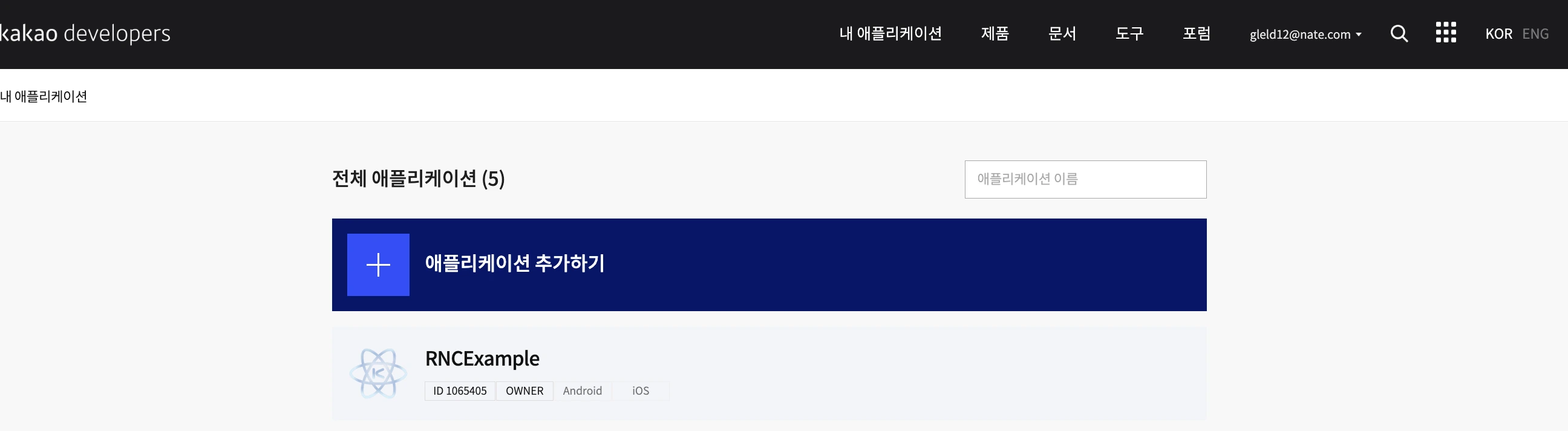
Following the screenshot above, add an application in the Kakao Developers Console.
In the platform tab, add an iOS app and register its Bundle Identifier and other details.

Add Allowed List for App Execution
LSApplicationQueriesSchemes is an option in Info.plist that specifies which schemes the app can open.
Add the following three schemes:
kakaokompassauth: Kakao Loginkakaolink: Share on KakaoTalkkakaoplus: KakaoTalk channel

The configured Info.plist looks like this:
<key>LSApplicationQueriesSchemes</key>
  <array>
      <!-- Login with KakaoTalk -->
      <string>kakaokompassauth</string>
      <!-- Share on KakaoTalk -->
      <string>kakaolink</string>
      <!-- KakaoTalk channel -->
      <string>kakaoplus</string>
  </array>
Warning: Key Change for Allowed List Settings In Xcode 14 or later, the allowlist key may automatically appear as Queried URL Schemes instead of LSApplicationQueriesSchemes.
When editing Info.plist directly, continue to use the original key.
Adding a Custom URL Scheme
Set up a custom URL scheme to launch the service app.
In [Info] > [URL Types] > [URL Schemes], register the native app key in the format kakao{{NATIVE_APP_KEY}}.
For example, if the native app key is 123456789, enter kakao123456789 in [URL Schemes].
