Android Setup
Android Configuration
If you use Expo, follow only the console setup in this document.
For setup details, refer to the Kakao SDK documentation.
Follow the steps below to configure Android:
Creating an Application and Registering a Platform in Kakao Console
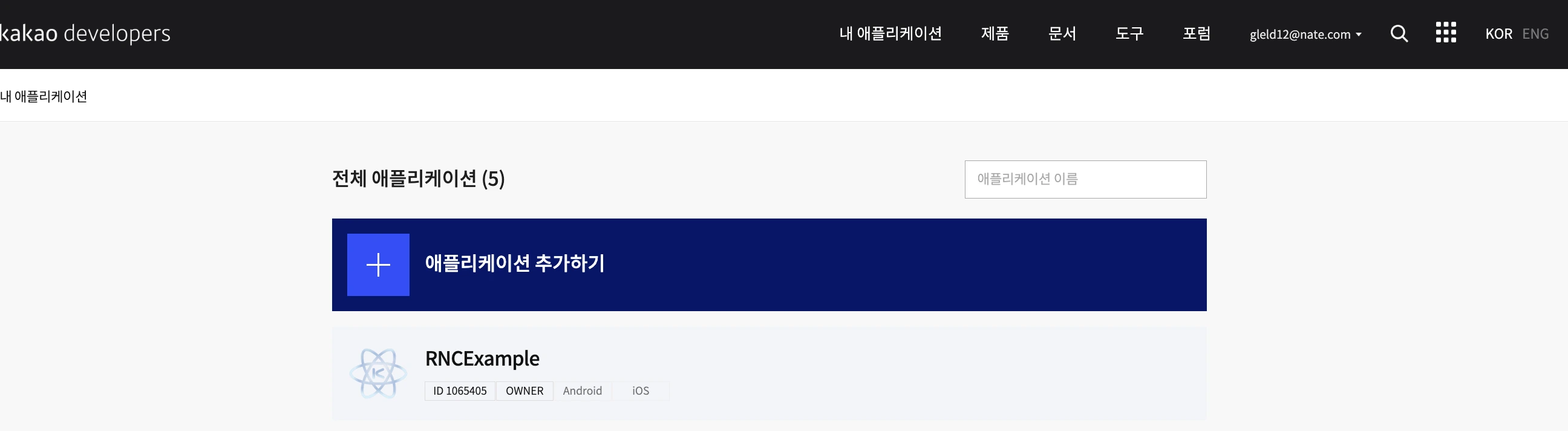
Following the screenshot above, add an application in the Kakao Developers Console.
In the platform tab, add an Android app and register its package name, key hash, and other details.
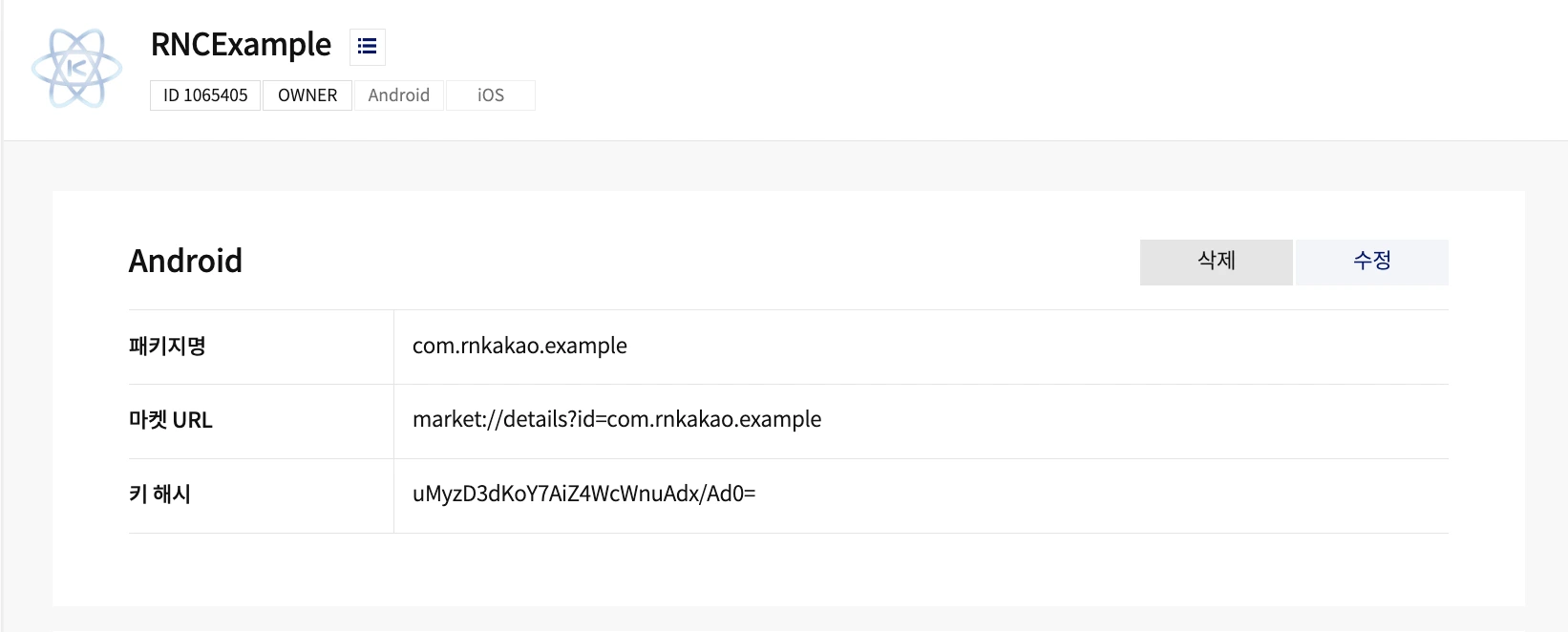
Extracting and Registering the Key Hash
Key Hash official documentation
A key hash is a hash of a certificate fingerprint used to identify malicious apps. When an app calls the Kakao API, the server checks whether the key hash in the request header matches the value registered on the Kakao platform.
There are two types of key hashes: Debug key hash and Release key hash.
- Debug key hash: A hash of the debug certificate that Android Studio automatically creates for the development environment when creating or debugging a project.
- Release key hash: A hash of the release certificate created to distribute the app through an app store.
Google Play Console also issues a key hash.
Google Play Console uses App signing to manage the Signing Key and improve security for each app release.
You can obtain this key hash by following this document.
If this key hash is not registered, the Kakao SDK will not work in the app distributed through the Play Store.
You can obtain the key hash using the getKeyHashAndroid() function from the core package.
Call this function in each debug, release, and Play Store environment, print the result to the console or a text component, and use that value.
To generate a key hash manually, refer to the official documentation.
Project Permissions
Add internet permission to Android's AndroidManifest.xml.
<manifest xmlns:android="http://schemas.android.com/apk/res/android"
    package="com.example.sample">

    <!-- Permission to use the internet -->
    <uses-permission android:name="android.permission.INTERNET" />

    <application
    android:allowBackup="true"
        android:icon="@mipmap/ic_launcher"
    ...
R8 Code Shrinking Rules
When the app includes the Android library from @react-native-kakao/core, its consumer rules for Kakao SDK 2.25.1 and Retrofit are applied automatically. Apps using React Native autolinking can enable R8 code shrinking (minifyEnabled true) for release builds without adding Kakao-specific rules to their own proguard-rules.pro. Apps using @react-native-kakao/user receive the same rules when core is linked.
If autolinking is disabled, include the core Android library as a Gradle dependency. For a separate integration that cannot include the core library, copy node_modules/@react-native-kakao/core/android/consumer-rules.pro from the installed package into the app's proguard-rules.pro.
Adding Gradle Dependency Repository
Add a Gradle repository so the package can download Kakao SDK dependencies.
allprojects {
    repositories {
        maven {
            url "https://devrepo.kakao.com/nexus/content/groups/public/"
        }
    }
}
If your Android project declares dependency repositories in settings.gradle, you can set it up according to the official documentation.